Want customers to request custom pricing instead of leaving your store? Here's how to set up product inquiries, customize the form, test the experience, and manage quotations in WooCommerce.
Imagine someone wants 30 office chairs from your WooCommerce store. They like the product, but they need a quantity discount, delivery details, and a formal quotation for approval. The only button they see is Add to Cart.
They might buy anyway, but some will need to contact you first. If the next step is hard to find, you may never hear from them.
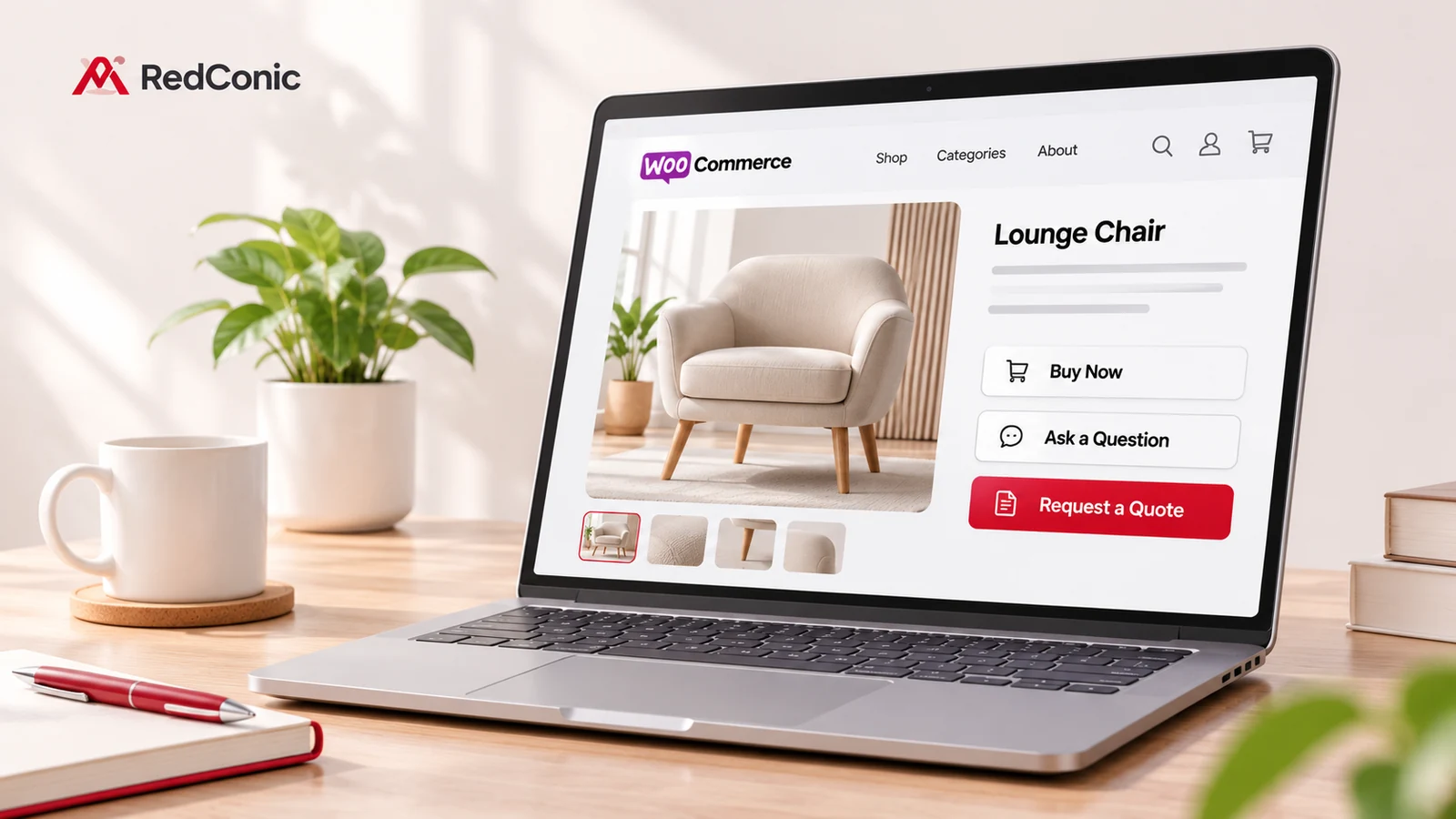
A Request a Quote button solves a specific problem: it lets a visitor show interest in products without committing to an immediate purchase. The customer chooses products, supplies requirements, and submits an inquiry. Your team can then review the request and prepare a quotation.
Quick answer: To add a Request a Quote button in WooCommerce, install and activate a compatible quotation plugin, choose which products should accept inquiries, configure the button and inquiry form, set up notification emails, and submit a real test request. RedConic Quote Manager Pro provides product inquiry buttons, a multi-item inquiry drawer, customizable forms, and quotation management in WordPress.
This guide explains both the setup and the decisions that make the feature useful to customers.
What Is a WooCommerce Request a Quote Button?
A Request a Quote button is an alternative action displayed on a WooCommerce product or catalog page. Instead of sending the customer directly to checkout, it starts an inquiry workflow so the store can prepare custom pricing or confirm requirements.
Depending on the solution, customers may add one or several products to an inquiry list, select product variations, specify quantities, describe their requirements, and receive a response from the merchant.
A product inquiry is not automatically an order, payment, or stock reservation. It should be treated as a sales request until your store explicitly creates and processes a real order.
WooCommerce is built around product catalog and checkout functionality. To add a managed quote-request workflow, stores normally use a compatible extension or a carefully built custom solution. WooCommerce's Quote Request documentation illustrates the separate add-to-quote and multi-product inquiry pattern.
When Should You Use a Quote Button Instead of Add to Cart?
There are three practical approaches:
| Store setup | Best for | Customer action |
|---|---|---|
| Add to Cart only | Standard, fixed-price products | Purchases immediately |
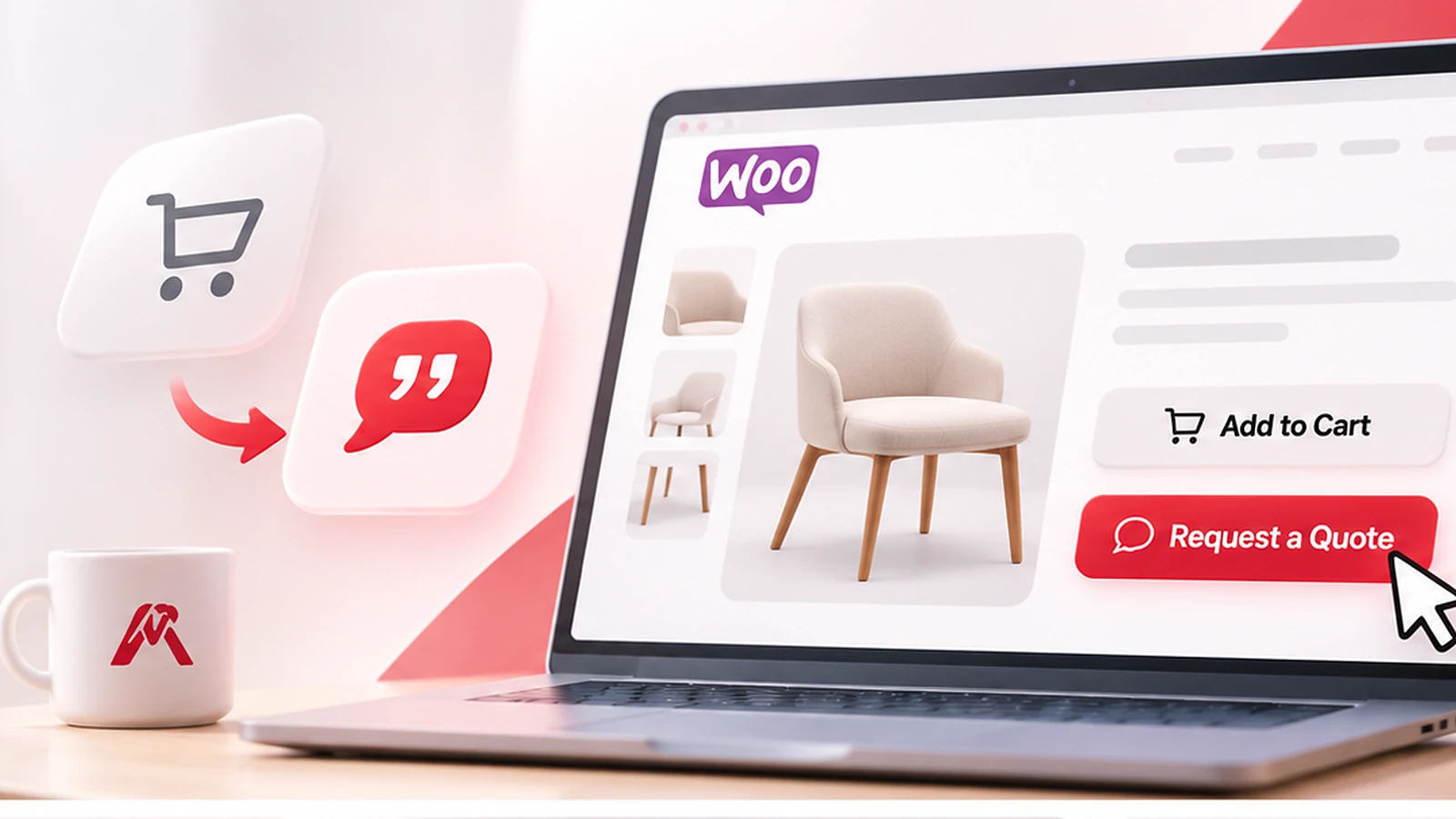
| Add to Cart + Add to Inquiry | Mixed catalogs and products with optional bulk pricing | Buys now or asks for a quotation |
| Request a Quote only | Fully custom products or orders requiring manual pricing | Sends specifications and waits for a quote |
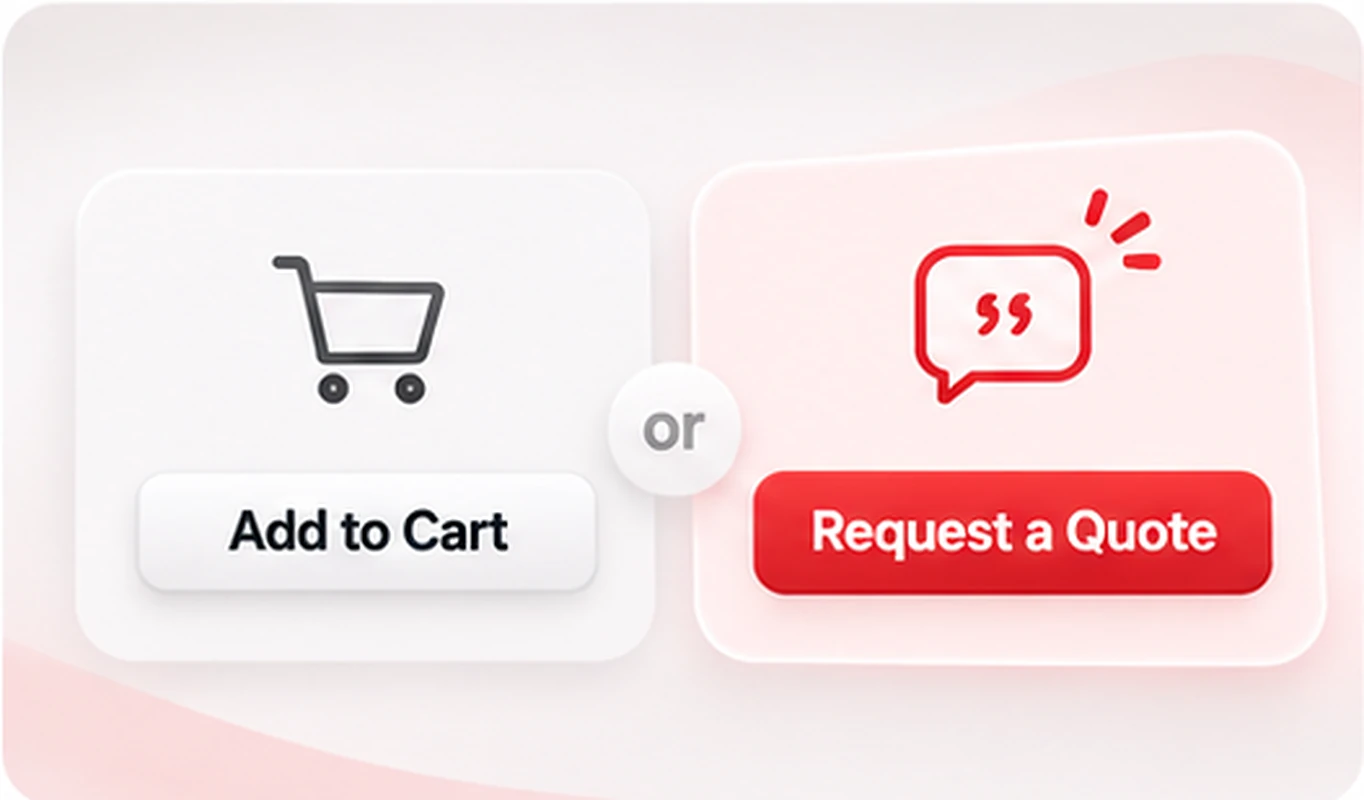
For most mixed catalogs, start with both options on selected products. It gives customers who know what they want a direct checkout while allowing those who need pricing discussions to ask questions. Use a quote-only flow when a customer genuinely cannot purchase without an individualized offer. Whether you can hide or replace Add to Cart from the plugin's interface depends on the exact version and configuration: verify that control before designing a quote-only catalog.
A WooCommerce community discussion raised an important implementation issue: how should inventory behave when an inquiry hasn't become an actual order? The sensible principle is that submitting a quote request should not silently reduce stock. Confirm the behavior of the plugin and your order workflow before launching.
Before You Begin: A Five-Point Preparation Checklist
- Have WordPress and WooCommerce working. Open a normal product page and check that products, variations, and checkout already function as intended.
- Take a backup or use staging. Install and test new commerce functionality on staging first, especially on a live store.
- Identify eligible products. Decide whether quotes are for your whole catalog, selected categories, or only certain products.
- Write down the information your sales team needs. For example: quantity, dimensions, delivery location, deadline, artwork, or installation requirements.
- Choose a monitored notification address. An inquiry that nobody receives is a missed opportunity.
You can get the plugin and review its current capabilities here: RedConic Quote Manager Pro for WooCommerce.
Step 1: Install RedConic Quote Manager Pro
If you've purchased the plugin, use the official ZIP from your RedConic customer account or authorized download area.
- Sign in to your WordPress dashboard using an administrator account.
- Open Plugins → Add New Plugin → Upload Plugin.
- Choose the RedConic Quote Manager Pro installation ZIP.
- Select Install Now, then Activate Plugin.
- Locate the Quote Manager entry in the WordPress sidebar.
- If the installed version requests a license key, activate it using your valid RedConic license.
Don't extract the plugin into random theme folders or install multiple versions under different plugin directories. If you're replacing an earlier release, follow the documented upgrade path and preserve a backup.
Troubleshooting: If activation fails, note the exact error, check the key and activation limit, make sure outbound HTTPS requests from WordPress work, and use the official RedConic support channel. Do not paste license keys into public forums or screenshots.
Step 2: Decide Where the Request a Quote Button Should Appear
This is the most important product decision in the entire setup.
A site that sells both ordinary accessories and made-to-order furniture probably should not force every visitor to request a quote. Instead, choose the products for which pricing or requirements need discussion.
Within the plugin's product eligibility controls, configure the products or categories that should offer Add to Inquiry. The exact position of these options may differ by installed release; look under the Quote Manager settings and product-specific controls.
Start with a small group: perhaps one configurable desk, one office chair sold in quantities, and one custom storage cabinet. Then verify how the button appears in:
- Single product pages.
- Shop or catalog listings where supported.
- Product category pages where supported.
- Mobile layouts.
- Products with variations and different quantities.
Important: A visible button is only the start. Verify that the selected product and its options are correctly passed into the inquiry.
Step 3: Customize the Button Without Making Checkout Confusing
Your button should look trustworthy, fit the store's design, and clearly describe what happens next.
Useful labels include Add to Inquiry, Request a Quote, and Ask for Custom Pricing. Avoid vague labels such as Submit or Continue when the user has not yet understood the quotation process.
In RedConic's design controls, set the available button styling, colors, typography, and spacing to match your store. Use sufficient contrast and a large enough clickable area for mobile visitors.
Recommended placement: Show the quote action near the product's primary purchasing controls. If both checkout and quotation are available, visually separate them so customers know that Add to Cart is for buying and Add to Inquiry is for asking for a proposal.
Don't hide Add to Cart only through CSS while leaving a conflicting backend purchase flow active. Use your plugin and WooCommerce's supported configuration, and test the result on the actual frontend.
Step 4: Configure the Multi-Product Inquiry Drawer
A visitor may want a proposal for several items rather than one. Repeatedly filling in a contact form is unnecessary friction.
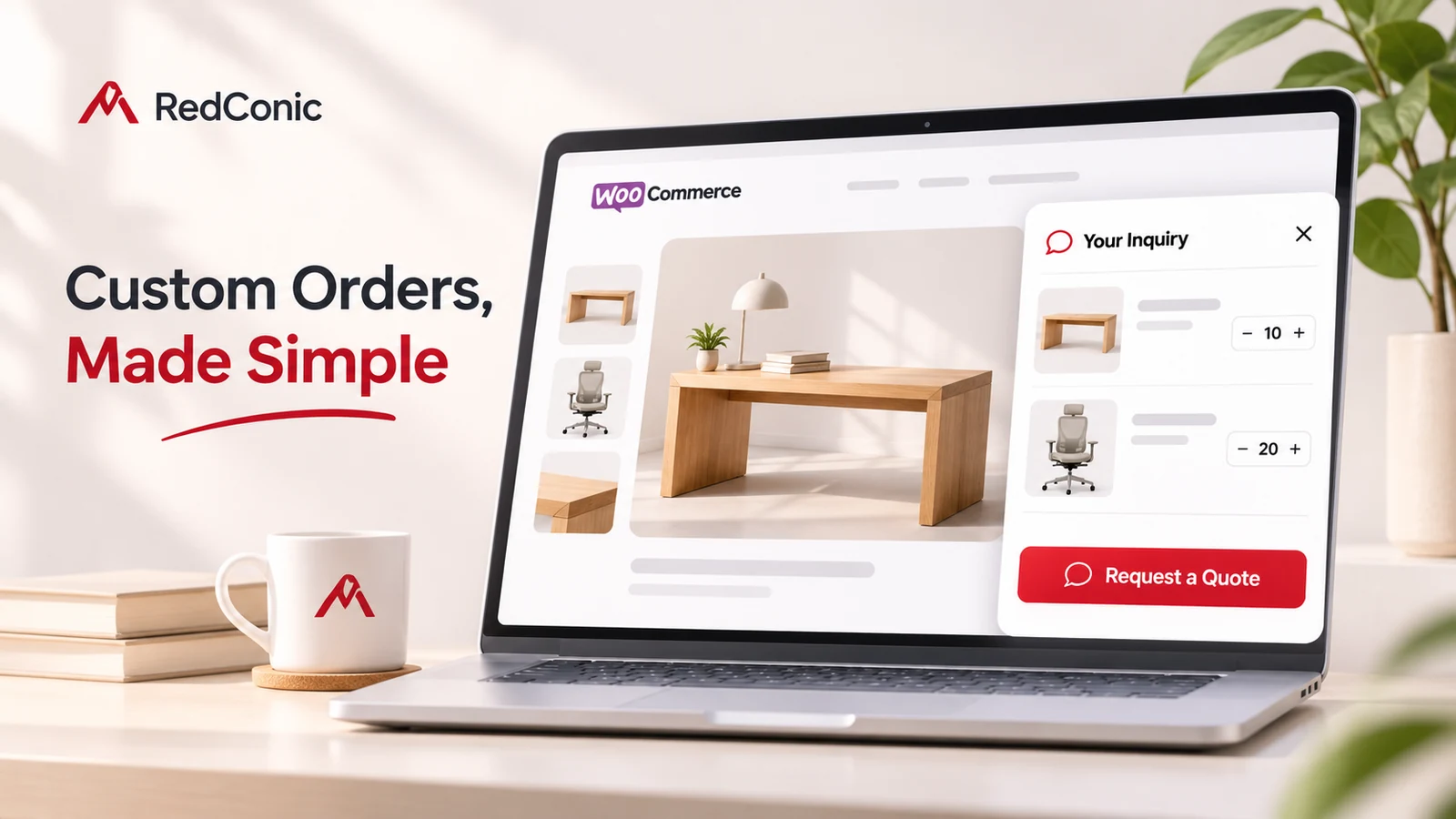
RedConic Quote Manager Pro's inquiry interface lets customers collect multiple products and review their selection in a right-side drawer.
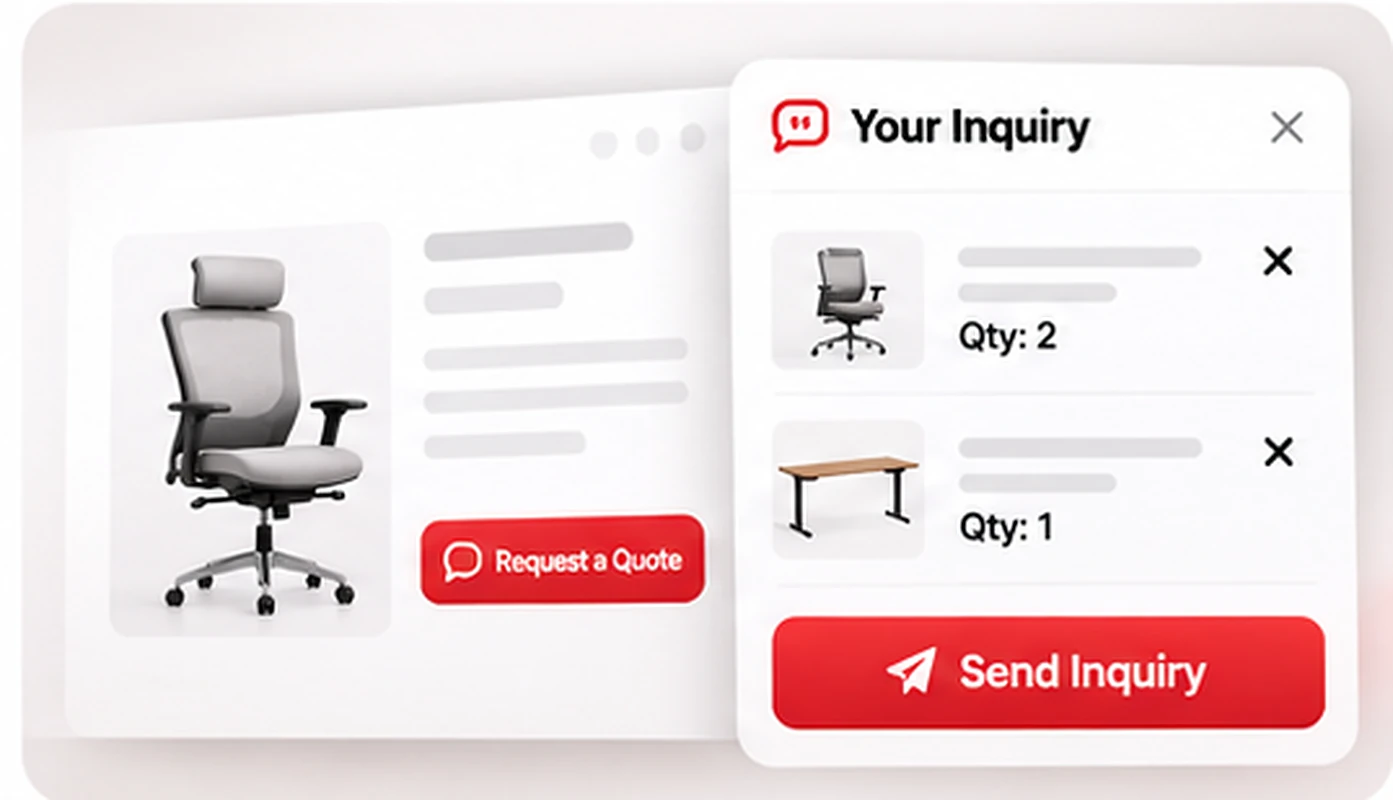
A normal customer journey looks like this:
- The customer opens an eligible product.
- They select relevant options or variations, when applicable.
- They choose Add to Inquiry.
- The inquiry drawer shows the selected item.
- They continue browsing and add more products.
- They review the list and move to the inquiry form.
Test the navigation indicator and item count, the ability to remove an unwanted product, and the treatment of quantities and variations. These details matter because they determine whether your sales team receives the products the customer actually selected.
Example: A customer may request 12 chairs, 4 standing desks, and 2 cabinets. The final inquiry should preserve each product and its requested quantity, rather than arrive as a generic message saying “Please send me prices.”
Step 5: Build an Inquiry Form People Will Actually Complete
The right form collects enough information to prepare an accurate quote without turning the inquiry into a long application.
Start with the essential fields:
| Field | Required? | Reason |
|---|---|---|
| Full name | Usually yes | Identifies the requester |
| Email address | Usually yes | Allows a response |
| Selected products and quantities | Automatically included where available | Preserves product context |
| Requirements or message | Depends on the catalog | Explains custom needs |
| Phone | Optional unless essential | Allows a callback |
| Company | Optional | Useful for organizational purchases |
| File attachment | When relevant | Artwork, measurements, or specifications |
| Delivery location | When relevant | Helps estimate logistics |
RedConic Quote Manager Pro includes a form builder with customizable fields, required inputs, file uploads, and conditional logic. Use the controls available in your installed release to create a focused form.
Example: A custom furniture inquiry
A furniture store might collect preferred dimensions, finish, quantity, delivery postcode, and a drawing attachment. If the buyer is ordering a standard chair in a fixed configuration, asking for those extra fields may be unnecessary.
Conditional fields can keep the form shorter by showing detailed questions only when they matter. Always test conditional behavior after changing fields.
Privacy note: Explain why you collect personal details, link to your privacy policy, limit attachments to appropriate file types and sizes, and avoid collecting sensitive information that is unnecessary to quote the job.
Step 6: Set Up Customer and Store Notifications
The customer should get clear confirmation that an inquiry was submitted. The store owner or sales team should receive enough information to respond.
Review the email templates and notification controls available in Quote Manager. Configure the sender identity, recipient addresses, subject lines, company branding, and supported template fields.
A customer confirmation should answer three questions:
- Was my request received? Confirm receipt.
- Which products did I ask about? Provide a useful summary or reference.
- What happens next? Explain that the team will review the request and respond with pricing or questions.
Avoid promising an exact quotation time unless your team can reliably meet it.
For merchants, test delivery to the real sales inbox. Check spam filtering, sender authentication, SMTP or transactional email configuration, and any email logs available in your plugin.
Do not assume a successful form message guarantees email delivery. The inquiry should exist in WordPress even if an email is delayed, and your team should have a process to review new inquiries in the dashboard.
Step 7: Review Requests and Prepare Quotations in WordPress
After the customer submits an inquiry, your team needs a consistent process for replying.
In the Quote Manager administration area, open the inquiry dashboard and inspect the customer details, requested products, quantities, requirements, and attachments when present.
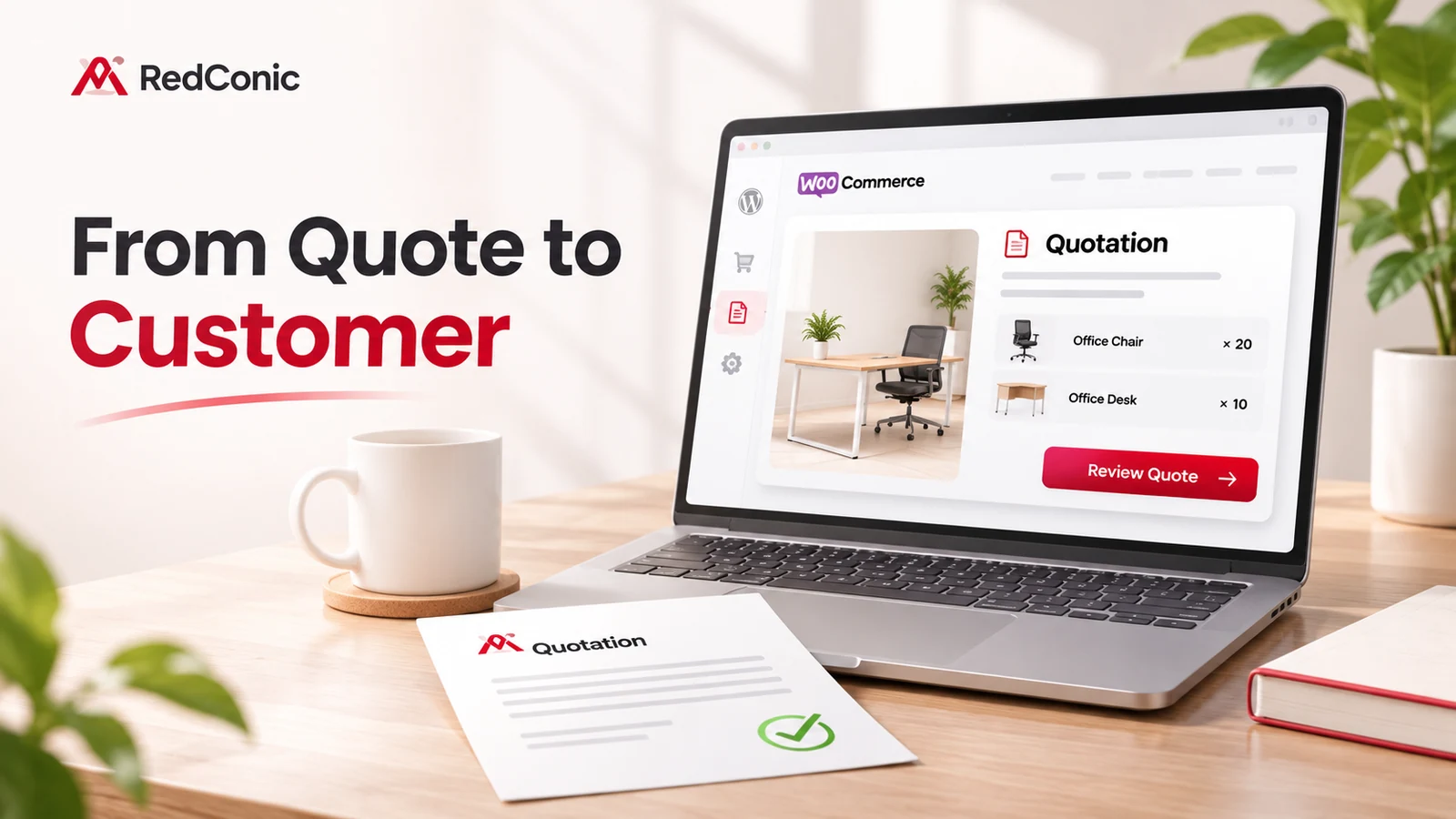
Use available statuses such as New, In Progress, Quoted, and Closed to track what has happened. Prepare a manual quotation where appropriate and verify prices, discounts, validity, shipping assumptions, and any applicable tax before sending it.
Example: A request for 20 desks could lead to a quotation that specifies the model, quantity, unit price, any approved line discount, delivery charge, and validity period. The quotation is a commercial offer, not proof that the customer has placed a paid order.
For larger teams, define who is responsible for new requests and establish a review routine. A reliable response process will matter more than an attractive button alone.
Step 8: Perform a Real End-to-End Test Before Launching
Your store is not ready merely because the button appears on one product page. Test it from the customer's point of view and then from the merchant's dashboard.
The six tests to run
- Visibility: Open an eligible and an ineligible product. Verify the button appears only where intended.
- Selection: Add multiple products. Check the quantity, variation, and any notes carried into the inquiry.
- Drawer: Open and close it. Remove one product, return to browsing, and verify the count and remaining items.
- Form: Submit valid information, then deliberately leave a required field blank to test the error. If attachments are enabled, test a supported file.
- Admin: Confirm a single inquiry was created and that its product details match what you selected.
- Email: Check the customer confirmation and the store notification, including links, subject lines, and branding.
Repeat the critical steps on desktop and mobile. Include one real test on a slow mobile connection and check that keyboard users can operate the controls.
Check stock and orders separately
Submitting an inquiry should not be mistaken for a completed purchase. Test that your stock and order reporting follow your intended rules. If a customer later accepts a quotation and moves to checkout, only use conversion behavior that is actually supported and enabled in your installed version.
Common Problems and Practical Fixes
The Request a Quote button does not show
Check plugin activation, WooCommerce activation, product eligibility, category settings, variable-product selections, and frontend caching. Test with a standard WooCommerce-compatible theme or a staging environment to isolate a conflict.
The button appears but does nothing
Open the browser developer console, check for JavaScript errors, ensure critical scripts are not deferred or excluded incorrectly by optimization tools, and test without aggressive caching or minification. Do not disable performance optimization globally without identifying the cause.
The inquiry drawer overlaps the menu or footer
Look for layout, stacking-context, fixed-position, and overflow conflicts introduced by the theme or page builder. Test the drawer in mobile view and while scrolling. Fix the underlying conflict rather than applying extremely high z-index values to every element.
The wrong variation or quantity is submitted
Select a variable product, choose attributes, add it to the inquiry, and compare the saved details with the frontend selection. If the mismatch is reproducible, collect a test case with the product type, steps, plugin version, and relevant logs.
The inquiry form submits but emails do not arrive
Check the inquiry record first. If it exists, investigate the email configuration independently: sender address, DNS authentication, notification recipients, delivery provider, queue, and email logs.
You see duplicate customer emails
Check whether WooCommerce, the quotation plugin, a form plugin, or an email automation tool is sending overlapping notifications. Assign one owner to each message in the workflow.
You want a quote-only catalog but checkout still appears
Confirm that the installed version provides supported product and cart visibility controls. Do not equate a visually hidden Add to Cart button with disabling purchases safely. Test links, quick-buy controls, direct cart URLs, and product-archive behavior.
How to Make Your Request a Quote Button More Effective
After launch, improve the experience using actual customer behavior rather than assumptions.
Choose clear button text. “Request a Quote” is generally more direct than “Contact us,” especially when a visitor is looking at a specific product.
Show reassurance near the form. Explain that an inquiry isn't a completed purchase, and tell customers what kind of response to expect.
Keep the inquiry visible. A clear navigation indicator or drawer makes it easier for customers to continue browsing and return to their selections.
Don't overload the form. Remove fields that your sales team rarely needs. Use conditional questions for complex products.
Respond consistently. Assign ownership for new inquiries and prepare clear, relevant quotations.
Measure the whole funnel. Track inquiries, qualified opportunities, quotes sent, accepted offers, and completed orders. A higher number of form submissions is not necessarily higher revenue.
For the broader lead-generation strategy, see RedConic's related guide “How to Get More Leads From Your WooCommerce Store With Request a Quote” (link to the published Blog 1 URL when available).
Request a Quote Plugin vs a Simple Contact Form: Which One Should You Use?
A contact form is sufficient for occasional simple product questions. It may be the most maintainable solution for a small brochure-style catalog.
A dedicated quotation plugin is more useful when customers need to collect multiple products, preserve variation and quantity details, submit structured requests, and work with a merchant-managed quotation process.
An April 2026 WooCommerce discussion shows why this distinction matters: store owners consider basic forms, catalog modes, and full quotation systems depending on how they operate. None is automatically the right choice for every store.
If you need a product-connected inquiry list, form builder, and WordPress quotation workflow, explore RedConic Quote Manager Pro.
Frequently Asked Questions
Can I add a Request a Quote button in WooCommerce without coding?
Yes. You can install a compatible WordPress quote plugin and configure its frontend controls. Advanced theme conflicts may still require developer troubleshooting, but basic setup should not require editing your theme files.
Does WooCommerce include a built-in Request a Quote button?
WooCommerce focuses on catalog, cart, checkout, and order functions. A dedicated quotation workflow normally requires an extension or custom implementation.
Can I show Add to Cart and Request a Quote together?
Yes, many quotation solutions support a dual-action approach. Whether both actions appear, and how they are enabled, depends on the plugin and product configuration. Test the exact behavior on your installed RedConic version.
Can customers request quotations for multiple products at once?
Yes. RedConic Quote Manager Pro includes an inquiry list and side drawer that support multi-product requests.
Is a quote request the same as an order?
No. A quote request records buying interest. It should not be treated as a paid order or a guaranteed stock reservation.
Can I ask for artwork or specifications with the inquiry?
The RedConic form builder includes attachment and custom field options. Configure file restrictions, privacy information, and any conditional questions appropriate for your products.
Why isn't my quote button visible on mobile?
Check responsive styles, product eligibility, theme conflicts, caching, and whether the mobile layout uses a different product template. Test an affected product at several screen widths.
What should I do if customer notification emails fail?
First verify that the inquiry was saved in the WordPress dashboard. Then review the sender, email delivery provider, recipient, template settings, and logs. Keep a monitoring process for new inquiries that doesn't rely solely on email.
Final Thoughts: Give Customers a Better Way to Ask for Pricing
A Request a Quote button is most useful when buying requires a conversation. It helps customers share product selections and requirements without pretending they are ready for immediate checkout.
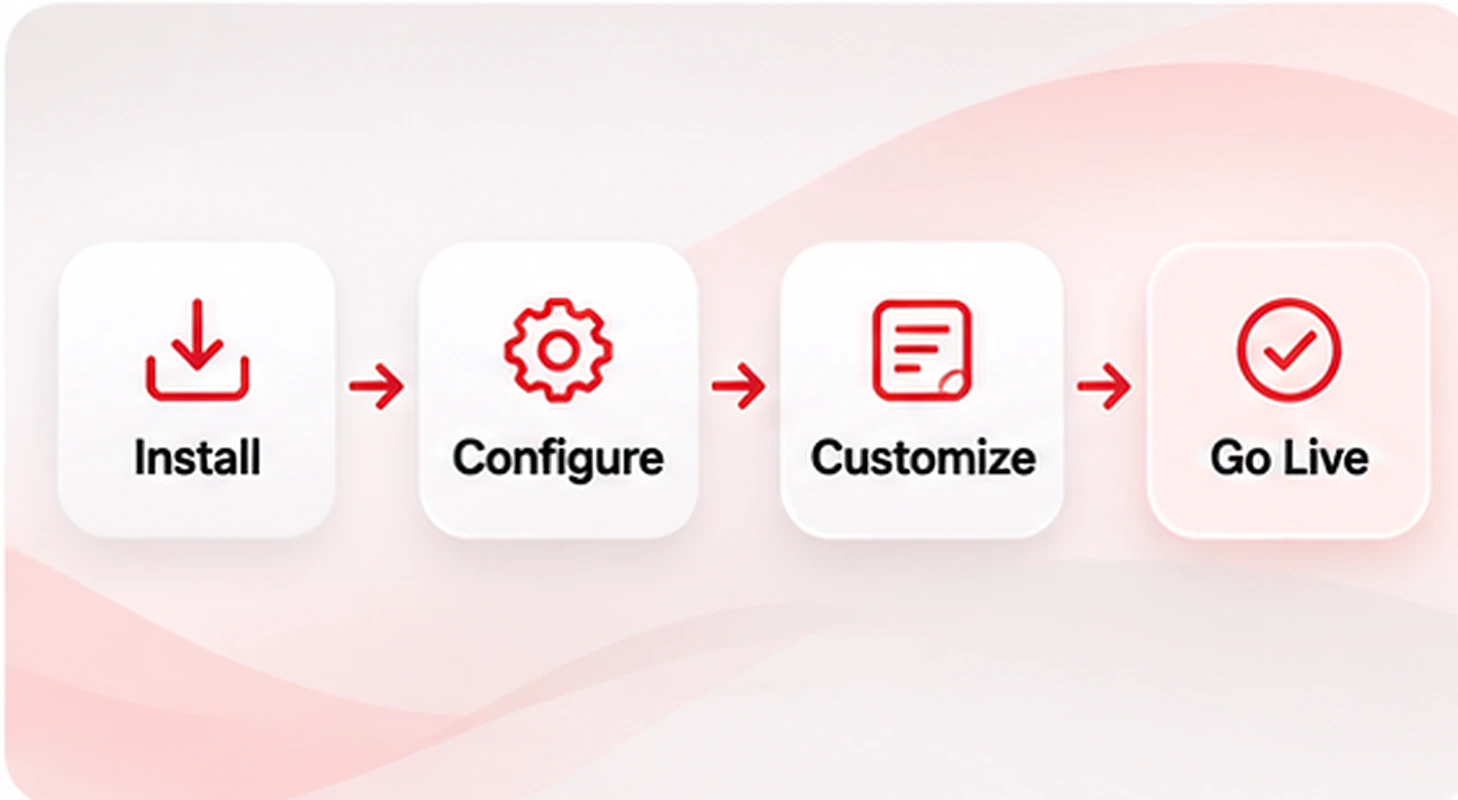
The setup is straightforward in principle: install a suitable plugin, select the right products, configure a clear button and useful form, test the customer experience, and make sure your team responds to every qualified inquiry.
The real value comes from the full workflow, not the button alone.
Ready to add product inquiries to your WooCommerce store?
Explore RedConic Quote Manager Pro features and plans and choose the configuration that fits your products and customers.
Related RedConic guides: How to Get More Leads From Your WooCommerce Store With Request a Quote and How to Sell Custom Products and Bulk Orders in WooCommerce Without Fixed Prices.